Start with the desktop home screen, then configure Settings, build in Editor, deliver versions, and collect listener feedback. The final chapters cover Hearo!, mobile review, and iOS Quick Listen.
Updated July 22, 2026 · Desktop, mobile, and DAW workflows
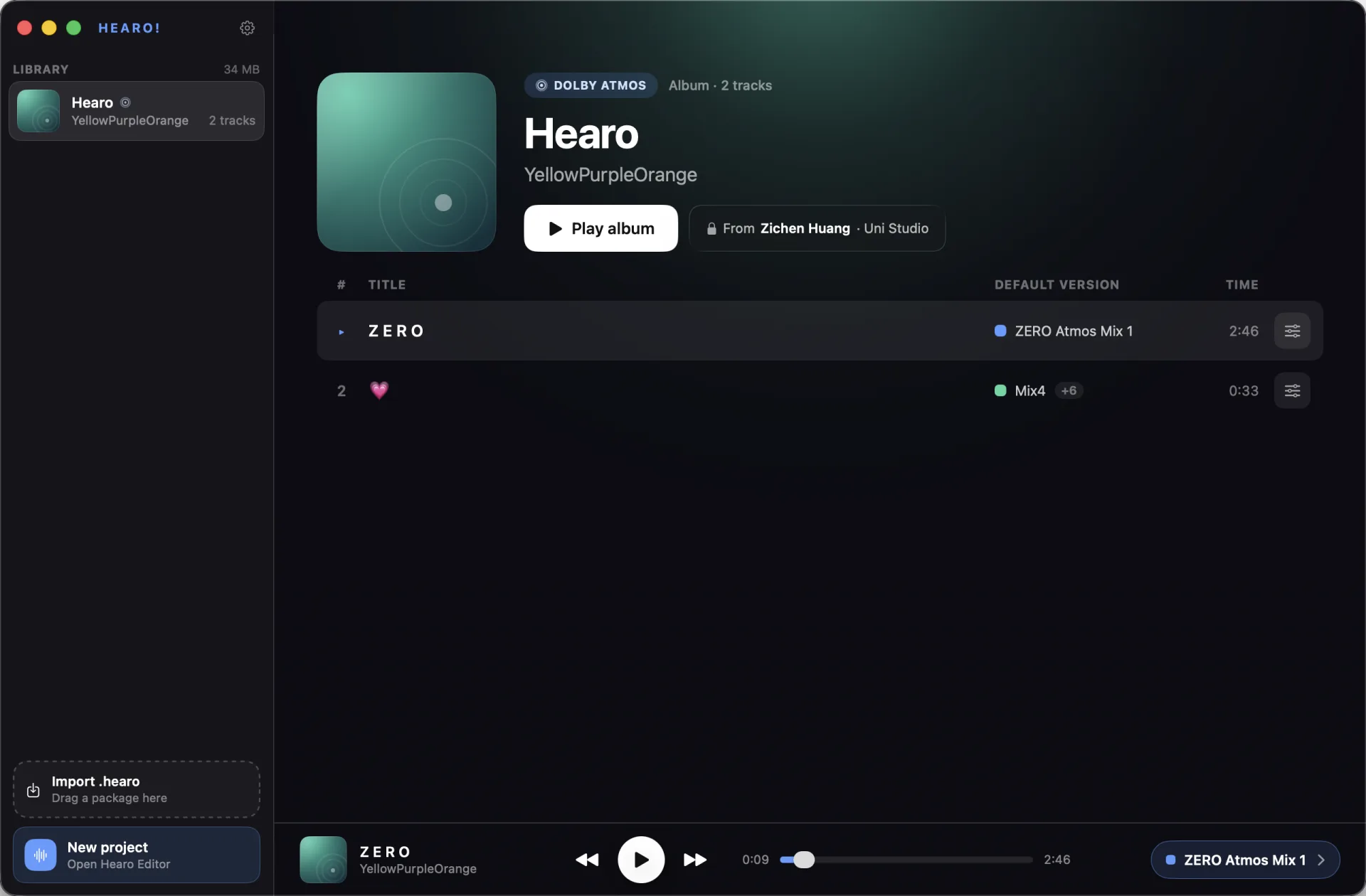
The library sits on the left, the selected project is in the middle, and the global player stays at the bottom. Engineers and clients use the same listening surface; project creators receive additional edit, password, and visibility controls.
1Library3Project overview4Global player2Import / NewLibrary, project overview, and global playermacOS
1
Library
Lists imported and created projects. Select one to open it, or drop a .hearo package into the import area.
2
New project
Engineers use the lower-left button to open Editor. Listeners only need to import the package they receive.
3
Project overview
Shows cover, title, artist, creator, songs, default versions, and duration. Select a song to open version detail.
4
Global player
Previous, play/pause, next, progress, and current version. The version capsule opens the switcher directly.
Import and open a delivered project
Drop the .hearo file into the lower-left import area, or click Import .hearo.
Enter the share password if requested. A valid account or device grant can unlock directly through the server.
Hearo copies the project into its managed library, so it no longer depends on the download location.
An update with the same project ID merges into the existing project instead of creating a duplicate.
Project context menu
Creators can edit, change the share password, inspect Who Viewed, push to Hearo!, and hide projects. Listeners see only actions available to them.
Hiding a whole project is a local desktop-library feature. Press H to reveal hidden projects after enabling it. This is separate from hiding a track version in Editor.
02 · Settings
Configure the account, Editor, and this computer
Open the gear in the upper-left. Sign in to the Uni Studio Account first, then configure engineer defaults, backups, subscription, hidden projects, and Hearo!.
① Nickname & save ② Apple ID linking and login password① Engineer defaults & studio name ② Default cover ③ Auto-backup folder① Editor subscription & restore ② Hidden projects ③ Sign out & delete account
Account & security
Sign in or register, edit the display name, link/change Apple ID, set/change the login password, sign out, or delete the account.
Device sync
Signed-in devices sync comments, stars, essential project state, and the default cover. Project audio is not uploaded to the account service.
Engineer defaults (desktop)
Enable “I'm an engineer” so studio name and account cover prefill new Mac/Windows Editor projects.
Editor entitlement (desktop)
Mac and Windows use the same account plan and expiry. Apple and other purchase channels route through their entitlement source.
Automatic backup (desktop)
Choose a folder and Hearo stores a project copy after creation/export. Never treat the creator's only computer copy as a backup.
Hidden projects (desktop)
The feature can be enabled while signed out; signed-in users may protect reveal with an account-level password.
Recommended first-time order
Sign in or create a Uni Studio Account and confirm the display name.
Link Apple ID for one-tap sign-in. A linked account shows Change Apple ID.
On Mac/Windows, enable the engineer profile, add the studio name, and upload a default cover.
Choose an automatic backup folder with enough free space.
Check Editor expiry; open the official plug-in download from the same page, then return to scan the installed version.
03 · Hearo Editor
Build a deliverable project in Editor
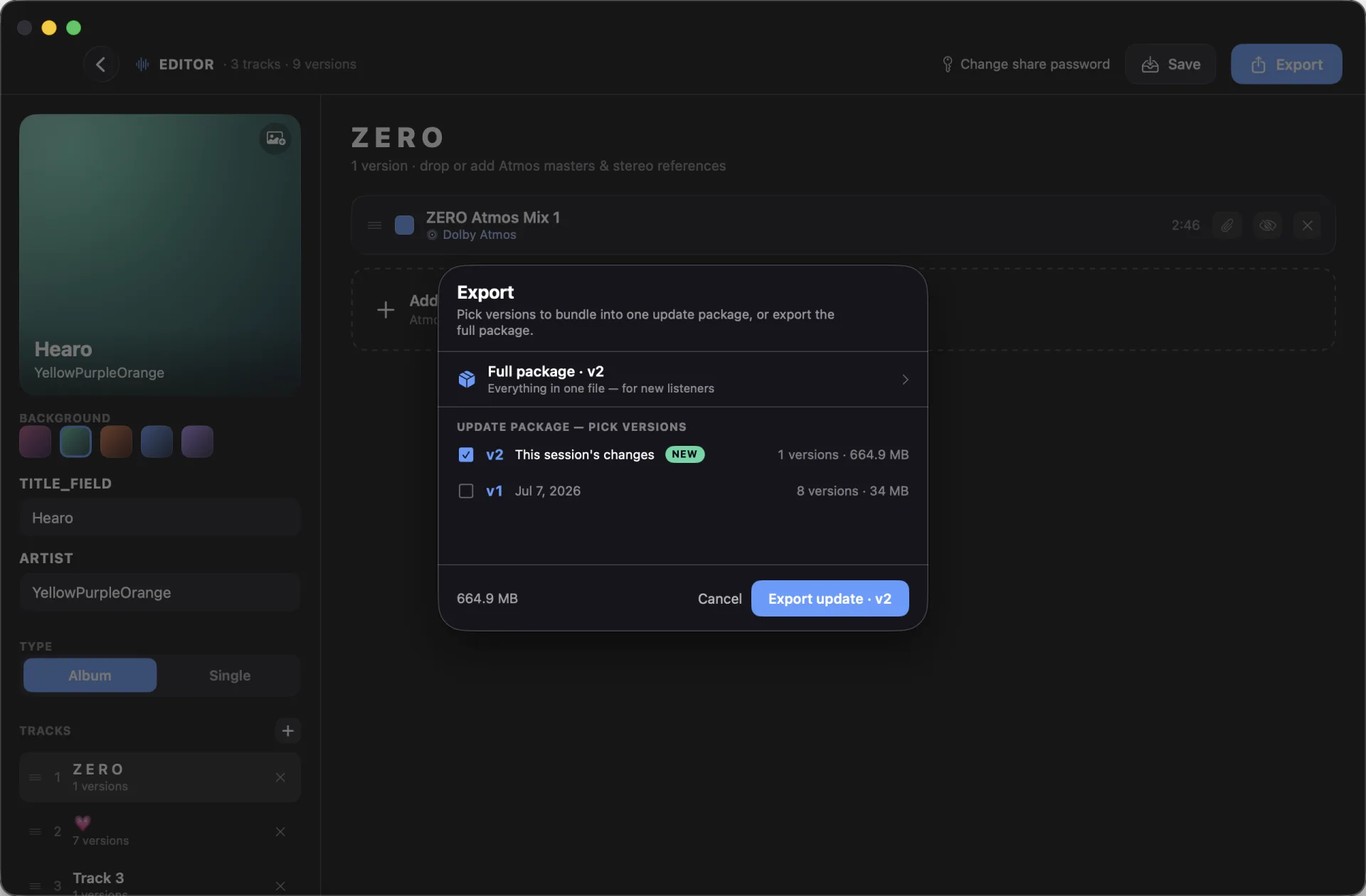
Editor is available on both Mac and Windows. The left column manages project information and songs; the right side manages every version of the selected song. The current screenshot is from Mac, while Windows uses the same information structure.
1Project details2Songs3Versions & loudness4Save / ExportProject details and songs on the left; versions, attachments, loudness, and export on the rightHearo Editor for Mac
1
Project information
Cover, background, title, artist, engineer, and studio. The account cover is compressed before cloud sync.
2
Song list
Add, remove, and reorder songs. Each song then contains multiple mix/master versions.
3
Version list
Import stereo, lossless, or Dolby Atmos .mp4, then name and order versions. Attachments never enter the listener playlist.
4
Save vs Export
Save keeps a local draft for an already-published project. Export publishes a project version and creates the delivery package.
Create a project
Choose New Project and select a normal project or Super Privacy. The mode cannot change after publication.
Enter project information, add songs, and import one or more playable versions per song.
Attach ADM BWF, .atmos, session files, or other engineering material when needed. Attachments are encrypted and creator-only.
Arrange songs and versions. Keep at least one playable version in every song.
Check loudness, visibility, and share password, then export v1.
Loudness matching: three control levels
Control
Effect
Song loudness switch
Exposes Match Loudness for that song. It defaults on for listeners and remains independent per song.
Version speaker switch
Includes or excludes that version. Excluded versions retain source level.
Version fine trim
Adds ±12 dB after automatic matching and is included in predicted True Peak risk.
No shortcut scan: Editor decodes the complete track for LUFS-I, Max LUFS-S, and 4×/64-tap True Peak. Atmos uses a 5.1-weighted interpretation. Rows appear first while analysis continues in the background.
A new project has no library location yet. Going back warns that all changes will be lost and offers Publish Project, Discard, or Cancel. It joins the library only after first publication.
04 · Delivery & Versions
Send the file and manage later revisions
The delivery unit is a project release. Send a full package first, updates after revisions, and a new full package for a new listener or missing base.
Publish v1 fullSend through your channelClient imports & commentsSend revision update
Package
Use it when
Result
v1 full
First delivery
All reachable content, usually ..._v1.hearo.
v2/v3 update
The listener has the base
Selected releases only; merges by project ID.
Newest full
New listener/device or uncertain base
Restores all current content; v2+ usually includes _full.
Combined update
Several historical updates are needed
Can include v1 + v3 without rewriting history.
First delivery
Export the v1 full package.
Send the .hearo through your own cloud drive, email, or transfer service. Hearo does not upload normal-project audio for you.
If there is a share password, send it through a separate channel.
Tell the client: import → choose song → select a version → comment.
After feedback
Right-click the library project and choose Edit Project.
Add/remove versions, reorder, or edit details. Only remaining net changes increment the project release.
Export “This revision” as v2/v3 update.
The client's import merges in place and earlier versions remain available for A/B.
Change share password: use the library context menu. The server returns a new password version and previous grants expire; the creator's own computer keeps access without re-entering the password.
05 · Listener Workflow
Switch versions, comment, and star
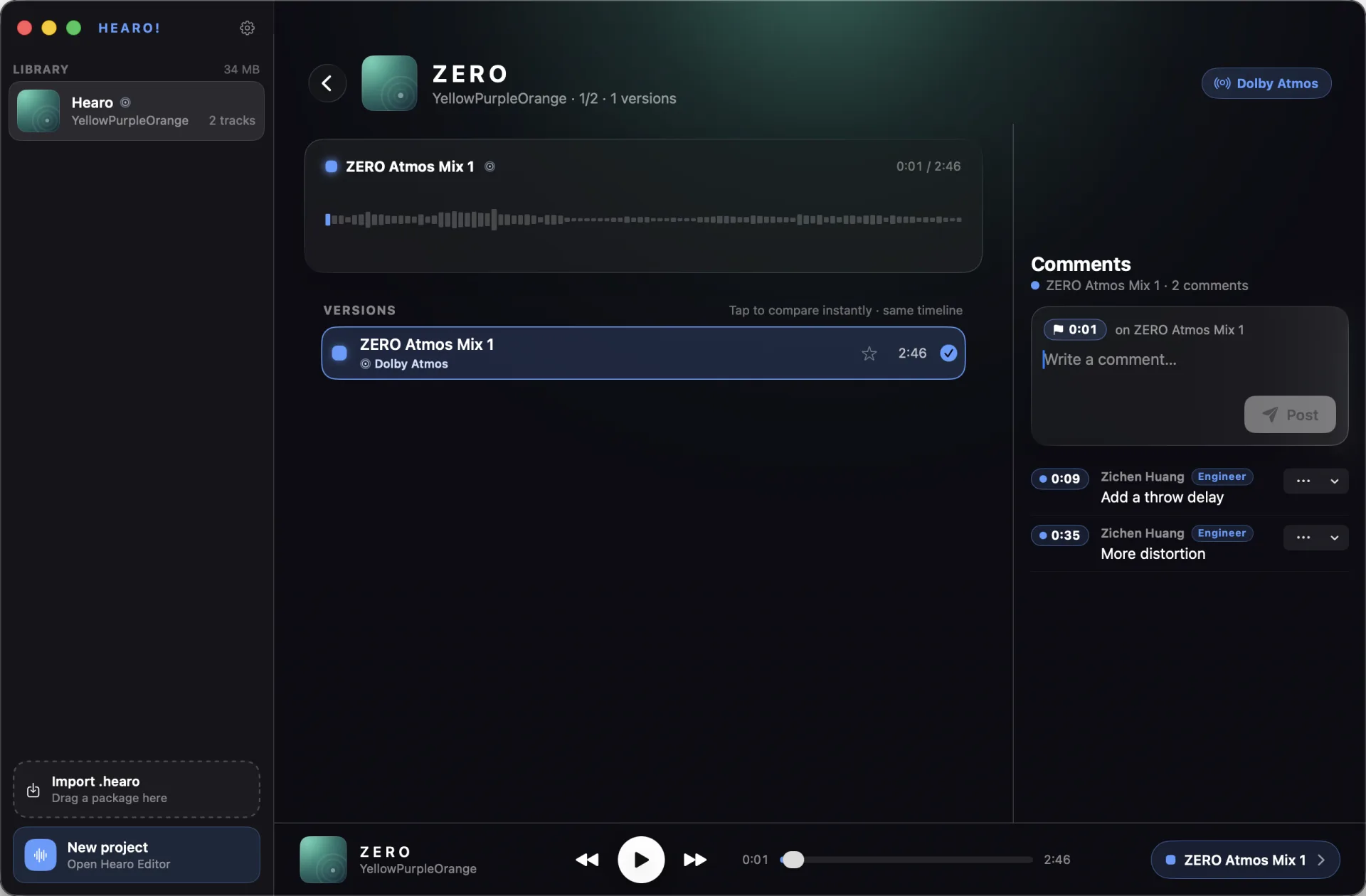
Listeners do not need Editor. The project overview selects a song; song detail handles A/B, comments, stars, and loudness matching.
1A/B & stars2Time-coded comments3Global playerVersion A/B and time-coded comments on one timelineListener view
Select a song from the project overview.
Click any version row to switch while the playhead remains in place.
Enable Match Loudness for a fair comparison. It is independent per song and defaults on where the engineer allows it.
Star a version to save your preference. Playback chooses your star first; without one, it uses the topmost playable version—never last played.
Select a specific version before typing. A comment automatically receives the version and current timecode.
Signed in
Comments, stars, and essential project state sync across devices; anonymous comments can be claimed during sign-in.
Signed out
Authorized imported projects still play. The comment area uses one lightweight sign-in button and opens the account sheet only when needed.
Gray version
The update package may be missing, or the creator may have hidden the version. Import the required update first.
Engineer suffix
Currently belongs only to that project's creator. It is project-scoped, not a global account title.
Desktop companion
Install and use the Hearo! DAW plug‑in
Hearo! is included with the Mac/Windows desktop app. It has no separate purchase or login and uses the account identity and Reference pushed by the running Hearo desktop app.
Official Hearo! plug-in installerChecking for a signed release…
Install: choose “Open official download” in desktop Settings, or use the button above. The website provides a Uni Studio-signed and notarized installer. Follow the macOS/Windows system installer; the Hearo app itself does not download or write plug-in code.
Push: the library context menu shows Push to Hearo! Plug-in only after at least one installed version is detected. One project occupies the Reference slot; the next push replaces it.
Account: the plug-in has no login screen. Comments return to the running Hearo app and use the Uni Studio Account that performed the push. Sign-out or account switching requires a new push.
A/B: Live is the current DAW session; Reference is the pushed Hearo project. Choose its song and version, with host-follow or independent transport.
Multichannel: the plug-in negotiates mono, stereo, 5.1, 7.1, or 7.1.2. Atmos references are prepared/downmixed by the desktop app for that bus.
Render protection: Bounce, Export, Freeze, or Commit offline mode hard-bypasses to Live so the reference cannot enter the result, then restores the prior A/B selection.
The project remains encrypted on disk. While Hearo and the plug-in are connected, Reference travels only through an authenticated local-memory stream; no recoverable PCM, CAF, or WAV cache is created. The audio thread performs no disk, network, decryption, or JSON work to keep latency and CPU low.
07 · iPhone & iPad
Mobile library, review, and Quick Listen
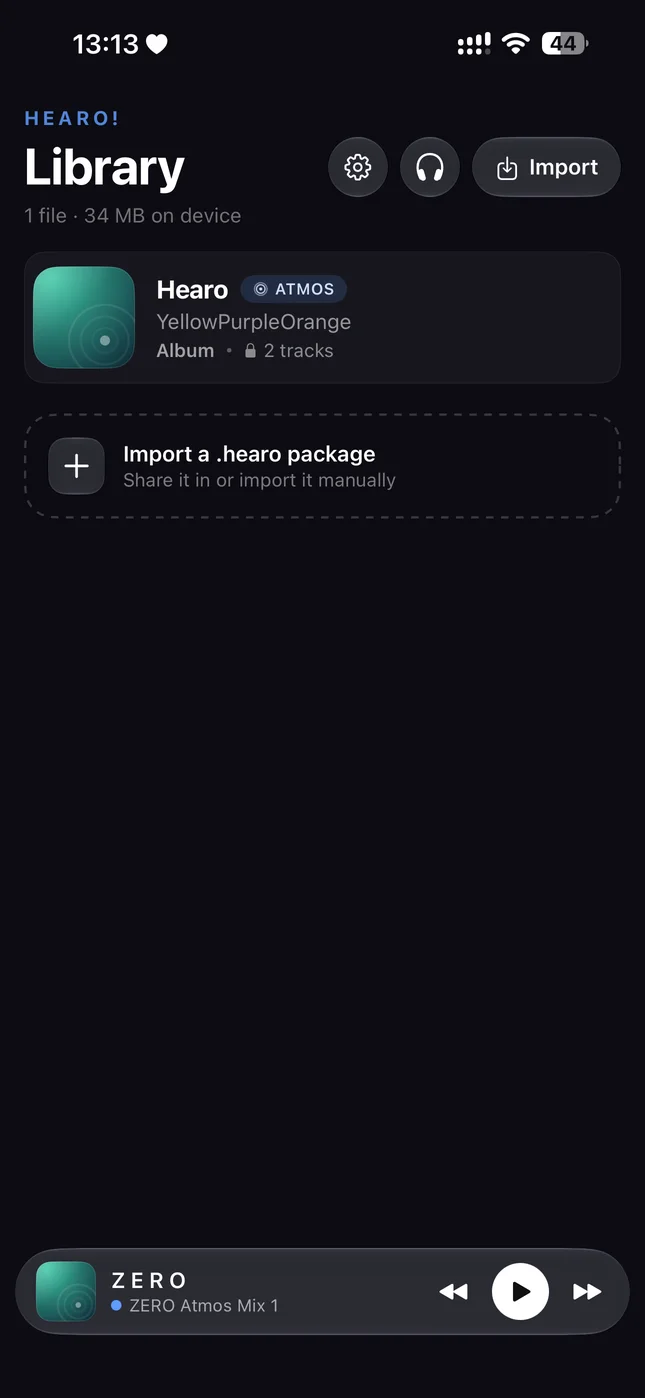
Mobile does not include Editor, but it supports project import, songs, version A/B, comments, stars, and loudness matching. iPad uses a split layout; iPhone uses layered navigation and edge swipe-back.
iPhone library home and mini playeriOS
Full projects
Open a .hearo from Messages, email, cloud storage, or Files and choose Hearo, or import from the library.
Enter the share password if needed. Song, version, and comment behavior matches desktop.
Tap versions for A/B, star preferences, and select a version before commenting. The mini player stays available while browsing.
Open later update packages with Hearo and they merge into the original project.
iOS Quick Listen
Quick Listen is the headphones button in the upper-right of the mobile library. It checks a regular audio file without creating a full Hearo project.
Tap the headphones in the library's upper-right to choose a file, or share ordinary audio into Hearo from another app.
The file uses the same iOS playback surface as a full project; stereo, lossless, and supported Atmos files follow their playback path.
The latest three files remain on-device. They do not enter the library and have no versions, comments, or project access.
On iPhone, collapse the view and playback continues in the Quick Listen mini bar. Expand from the title or close to stop and clear current playback state.
Ask for a complete .hearo package when long-term storage, A/B, or feedback is required.
08 · Checklist
Pre-delivery checks and troubleshooting
Song and version order is correct
Every song has a playable version
Required versions finished analysis
Visibility and share password are correct
First delivery uses a full package
Backup folder has the newest copy
Why is the comment button disabled?
Select a specific version of the current song. Opening the song or merely viewing the list does not choose the comment target.
Why did loudness not change?
Check the song switch, version speaker switch, LUFS data, and listener Match Loudness. Re-analyze LUFS for older projects when needed.
Why is a project or version gray?
A package may be missing, the merge may not have completed, or the creator may have hidden the version. Import the required update first.
What should I do before deleting a project?
The creator's Mac may hold the only editable copy. Back Up a Copy or confirm the automatic backup folder contains the newest full package.
When contacting support, include Hearo version/build, device and OS version, project filename, and reproduction steps. Audio is usually not required. support@uni-studios.com